How to Turn Your HDMI TV into a Smart TV with Chromecast
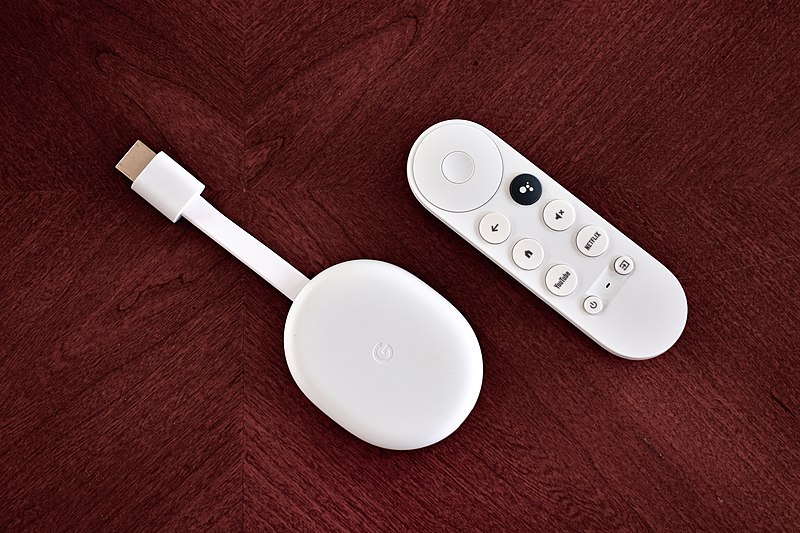
If your TV has HDMI ports, chances are, you can stream content from your smartphone, tablet, or computer to your TV via Chromecast. Chromecast is Google’s line of digital media players. It is designed to play content on high-definition televisions or home audio systems using Wi-Fi or local networks.
Chromecast now most commonly refers to Chromecast with Google TV devices, which include a built-in interface and remote. Older Chromecast models (casting-only devices) have largely been phased out.
The fourth-generation Chromecast with Google TV was released in September 2020. Since then, Google has released newer versions, including the Chromecast with Google TV (HD) in 2022. The HD model supports up to 1080p resolution, while the 4K version supports 4K HDR, including Dolby Vision and Dolby Atmos.
The fourth-gen Chromecast consists of a disc-shaped body attached to a small length of HDMI cable. It also includes a Bluetooth remote control and supports dual-band Wi-Fi for stable streaming performance.
Pricing varies by region, but it remains one of the most affordable digital media players available. Because it’s a Google product, you can use Chromecast to seamlessly stream content from Google Play and YouTube. You can also access services like Netflix, Hulu, and Spotify, just to name a few.
Unlike other digital media players and streaming dongles, the Chromecast does not have a user interface or independent capabilities on older models. However, the newer Chromecast with Google TV models do include a user interface and remote control. This allows standalone streaming without needing to cast from another device. These models also support voice control via Google Assistant.
Streaming Content with Google Cast
Chromecast users can select the media to play using mobile and web apps that support Google Cast technology. Google Cast is an extension built into many apps and the Google Chrome browser. It enables users to stream content to their Chromecast device. Both Chromecast and Google Cast are compatible with the iPhone and iPad, Android phones and tablets. They are also compatible with Mac and Windows laptops.
Users can also cast their Chrome tabs to their Chromecast devices. This lets them enjoy websites, photos, videos, games, and other media from the best screen in their homes.
Setting Up Chromecast for HD TVs
Connecting the Chromecast to your HD TV is a relatively simple process.
- Plug one end of the USB power cable into the Chromecast and the other end of the cable into the power supply. You should use the USB power cable and power adapter for optimal performance.
- Plug your Chromecast into any open HDMI input on your TV.
- Plug the power supply into an open electrical outlet.
Once the Chromecast is plugged into the television, you’ll see the Google TV home screen (on newer models) or an ambient screen (on older models). If the home screen isn’t visible, use the Input or Source button on your TV’s remote control to change the input until the correct screen appears. To complete setup, download the Google Home app on your smartphone or tablet. Then follow the on-screen instructions.
Having difficulty locating your TV’s HDMI ports? Some TVs have HDMI ports marked as “ARC,” which stands for “audio return channel”. This is mainly used for audio systems and is not required for Chromecast setup.
Casting from the Chrome Browser
To cast from Chrome, simply click the Cast icon in the toolbar (near the top right-hand side). The Cast functionality is now built into Chrome and does not require any additional extensions.
For more information on setting up Chromecast, check out Chromecast Help.
Casting a Chrome Browser Tab
Casting a Chrome browser tab enables you to mirror what’s displayed on your device onto your television screen. To cast a tab from your Chrome browser, simply open the tab you want to cast. Next, click the Cast icon on the top right-hand corner of your Chrome browser, then choose the Chromecast device you want to cast the tab to.
If you can’t locate the Chromecast device, try basic troubleshooting or get in touch with the Chromecast support team.
Once it’s activated, the Cast icon will turn blue. All that’s left for you to do is sit back, relax, and enjoy the entertainment. Also, don’t forget to congratulate yourself on turning your regular HDMI TV into a smart TV with Chromecast. This enables you to enjoy rich media and interactive content from the best screen in your home.
Conclusion
Turning a standard television into a modern entertainment hub is simple and affordable. With the right setup, you can turn your HDMI TV into a smart TV with Chromecast and enjoy streaming, apps, and more—all from the comfort of your couch.
Would you like to receive similar articles by email?

Paul Tomaszewski
Paul Tomaszewski is a science & tech writer as well as a programmer and entrepreneur. He is the founder and editor-in-chief of CosmoBC. He has a degree in computer science from John Abbott College, a bachelor's degree in technology from the Memorial University of Newfoundland, and completed some business and economics classes at Concordia University in Montreal. While in college he was the vice-president of the Astronomy Club. In his spare time he is an amateur astronomer and enjoys reading or watching science-fiction. You can follow him on LinkedIn and Twitter.


You May Also Like
How to Improve Communication in Contested Environments
How to Save Battery on Android? (In 12 Easy Steps)