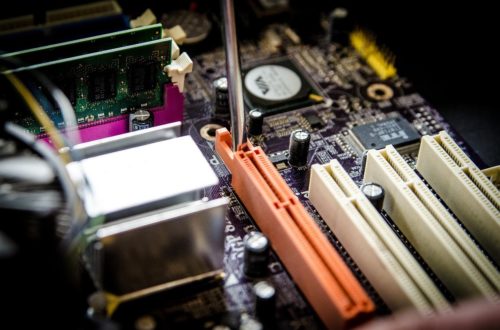
How to Fix the Orange Light on Your Motherboard?
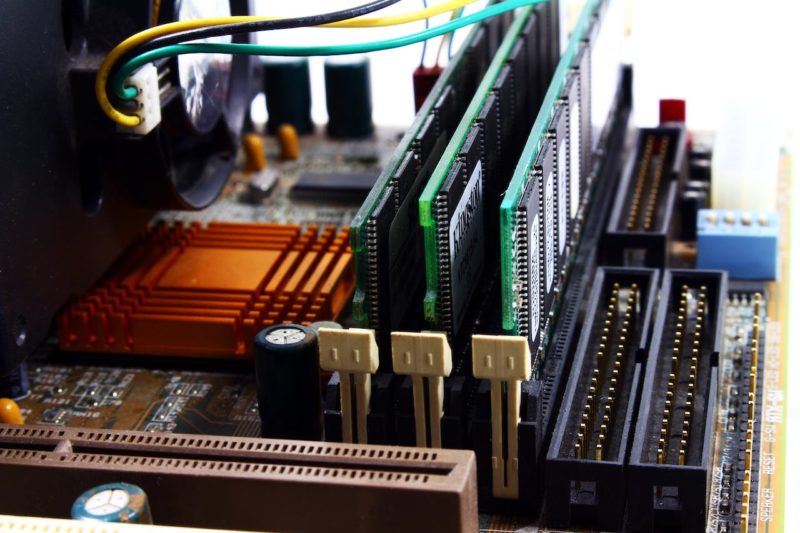
The motherboard, often regarded as the heart of a computer, plays a crucial role in ensuring seamless communication between various components. While it typically operates silently in the background, an unexpected orange light can be a cause for concern.
In this article, we’ll explore the potential reasons behind the appearance of an orange light on your motherboard and discuss troubleshooting steps to address the issue.
Understanding the Orange Light
- Indicator Lights: Motherboards often come equipped with indicator lights to signal various states of operation. An orange light may indicate a specific condition or error.
- Debug LED Systems: Many modern motherboards include built-in diagnostic systems (such as ASUS Q-LED or MSI EZ Debug LEDs) that indicate which component is causing an issue. On some systems, an orange or yellow light commonly points to a RAM (DRAM) problem.
- Power Supply Issues: Insufficient power or problems with the power supply unit (PSU) can trigger motherboard lights to change color.
- Overheating: Modern motherboards incorporate thermal sensors to prevent overheating. An orange light may indicate elevated temperatures. Thankfully overheating is more likely to cause system shutdowns or performance throttling rather than a persistent orange light.
- RAM Troubles: Random Access Memory (RAM) issues can contribute to motherboard problems. Faulty, incompatible, or improperly seated RAM is one of the most common causes of debug lights.
- Graphics Card Concerns: A malfunctioning graphics card may affect the overall system, causing the motherboard to display an orange light.
- CPU Issues: Problems with the processor—such as improper installation, bent pins (on some CPUs), or a missing CPU power connection—can also trigger motherboard warning lights.
- BIOS/CMOS Problems: Corrupted BIOS settings, failed overclocks, or a weak CMOS battery can prevent proper startup and trigger indicator lights.
- Peripheral or Boot Device Issues: Faulty storage drives or connected USB devices can sometimes interrupt the boot process and cause motherboard indicators to remain lit.
Troubleshooting Steps
- Consult the Manual: The motherboard’s manual is a valuable resource for understanding the significance of indicator lights. It provides insights into the different states the motherboard can be in and helps pinpoint the cause of the orange light. Pay special attention to labeled debug LEDs (CPU, DRAM, VGA, BOOT), as they provide more precise diagnostics than color alone.
- Check Power Connections: Ensure all power cables are securely connected. Examine the PSU for any signs of damage and use a power supply tester to verify its output. Ensure that the PSU is providing the correct voltage to the motherboard.
- Inspect Cooling Systems: Overheating can lead to an orange light. Check that all cooling components, including fans and heatsinks, are clean and functioning correctly. Consider upgrading cooling solutions if necessary.
- Reseat RAM Modules: Turn off the computer, disconnect the power, and reseat the RAM modules. Test each module individually to identify potential faulty RAM causing the orange light.
- Verify Graphics Card: Ensure the graphics card is properly seated in its slot. Test the system with a different graphics card if available, or try the suspect graphics card in another system.
- Check CPU Installation: Ensure the CPU is correctly seated and that no pins are bent or damaged. Verify that the CPU cooler is properly installed and that the CPU power cable is connected.
- Perform a Minimal Boot Test: Try booting the system with only essential components (CPU, one RAM stick, and PSU). Disconnect all non-essential devices to isolate the issue.
- Reset CMOS: Clear the motherboard’s CMOS settings by using the reset jumper or removing the CMOS battery briefly. This can resolve issues caused by incorrect BIOS settings.
- Update BIOS/UEFI: Outdated firmware can contribute to motherboard issues. Visit the motherboard manufacturer’s website and check for the latest BIOS/UEFI updates. Follow the instructions carefully to update the firmware. Only update the BIOS if necessary, as improper updates can cause additional problems. If available, use features like BIOS Flashback for safer updates.
- Check for Short Circuits: Ensure the motherboard is properly mounted and not shorting against the case. Verify that all standoffs and screws are correctly placed.
Conclusion
The appearance of an orange light on your motherboard can be disconcerting, but with systematic troubleshooting, you can identify and resolve the underlying issues.
By consulting the motherboard manual, checking power connections, inspecting cooling systems, reseating RAM modules, verifying the graphics card, checking CPU and BIOS settings, and performing minimal boot diagnostics, you can take proactive steps to ensure the smooth operation of your computer system. If the problem persists, seeking professional assistance may be necessary to diagnose and address more complex issues.
Would you like to receive similar articles by email?

Paul Tomaszewski
Paul Tomaszewski is a science & tech writer as well as a programmer and entrepreneur. He is the founder and editor-in-chief of CosmoBC. He has a degree in computer science from John Abbott College, a bachelor's degree in technology from the Memorial University of Newfoundland, and completed some business and economics classes at Concordia University in Montreal. While in college he was the vice-president of the Astronomy Club. In his spare time he is an amateur astronomer and enjoys reading or watching science-fiction. You can follow him on LinkedIn and Twitter.


You May Also Like
What is Network-Attached Storage (NAS)? A Comprehensive Guide
Tips on Building Your Own PC