How to Print Reverse Text
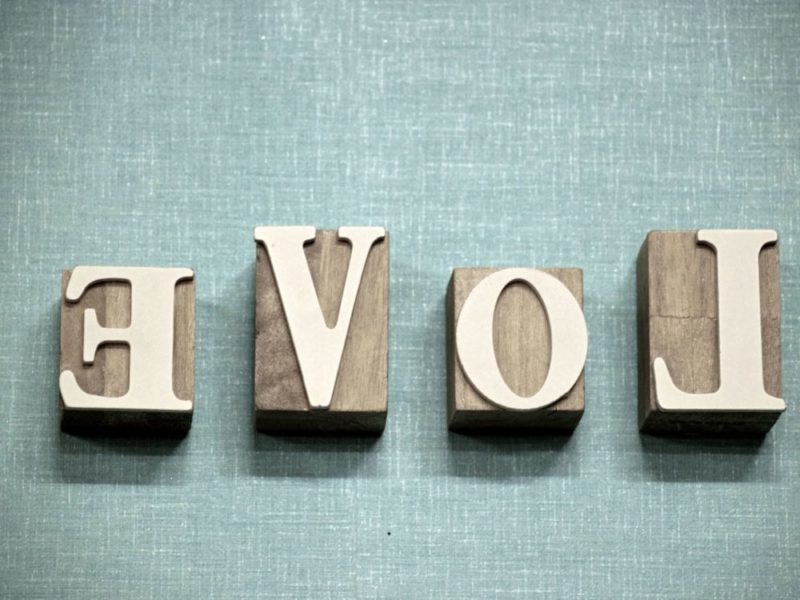
The use of reverse text is not new. Many notable writers used this method of writing. It dates back centuries, including the Renaissance period. It was widely used during the time of historical figures like Leonardo da Vinci, who often used mirror writing in his notebooks.
Reverse text is used for various purposes in everyday life. It can be used to print a reflective sticker saying “ambulance” but in reverse text. This is used to notify drivers who see through their rearview mirrors to move aside and clear the road for an ambulance. The reverse text appears correct in the mirror because of the mirror reflection effect.
Reversed letters are also used to transfer printed text and logo through transfer paper which after application appears right. It is also used for design and printing workflows. Reverse text can also be used to make children remember spellings of complex words. However, people often find it difficult to print reverse text correctly.
In this article, we will discuss multiple ways to print reverse text. These ways are listed below:
Using Microsoft Word
Microsoft Word is a widely used word processor with many formatting options. You can write or print text in various fonts and sizes, making it an efficient tool for document creation. Other tools like Google Docs or Canva can also perform similar tasks.
It also provides a solution for conversion of written text into reverse text style. Here is how you can use Microsoft Word to write or print reverse text. There are two separate methods. The first one enables you to save the reverse text as a file and the other one is mainly used for printing the text in reverse form.
Let’s take a look at both methods. In the first method, you insert a text box from the “Insert” tab. You can choose any type of text box. Now, write the text inside the text box. Make sure to size the inserted text box according to your text so it remains fully visible.
Now, right-click the text box and select “Format Shape”. Go to the “Shape Format” tab and use “Rotate” → “Flip Horizontal,” which is the simplest method in newer versions of Word and there you go your text is reversed.
Alternatively, you can use WordArt and apply the same “Flip Horizontal” option.
This was the first method. The second one is rather easier but can only be used for printing purpose. Open your file in Microsoft Word, insert the text using a text box or WordArt as described above, then flip it using the “Flip Horizontal” option. This flipped layout can then be printed directly.
Note: the “Print pages in reverse order” option only changes page order and does not mirror text.
Check the Preferences of Your Printer
Many printers include a mirror or reverse printing feature. However, the feature name varies by manufacturer. In some printers it may be labeled as “Mirror Image,” “Flip Horizontal,” or “T-shirt Transfer mode.”
You can use this feature to get output as reverse text. If you don’t see this option, there is another easy method to get reverse text printed. While providing instructions to printer, go to the Advanced or Layout tab and choose an option labeled “Mirror Image” or similar. These labels vary by manufacturer. Note that many modern home printers may not include this feature, so software-based flipping is often required.
If you are using an old printer and you don’t see anything like those mentioned above then it is recommended to create a flipped version of your document using software tools before printing, as reversing page order alone does not mirror the text.
Use Reverse text Generator
If you want an easier method to get text written backward then you should try any online reverse text generator. You just have to copy and paste the text you want to reverse, and the reverse text generator would perform its job. There are plenty of tools available for this purpose, such as TextMechanic or Lingojam. These tools are best for quick use, but note that reversed text will only appear correct when viewed in a mirror or used in transfer printing.
Use MS Paint
You can also use Microsoft Paint to reverse letters and here is how. First open Paint and copy the formatted text as an image and paste it into the Paint window. Now select the image in the Paint canvas. Go to the “Rotate” option in the toolbar and choose “Flip horizontal.” This will instantly mirror the image.
Remember, Paint flips images—not editable text—so you must convert your text into an image (via screenshot or image paste) before using this feature. You can then copy or save the flipped image for printing or further use.
Conclusion
Printing mirrored content doesn’t have to be complicated. With the right tool—whether software, printer settings, or an online generator—you can quickly print reverse text for design, transfer, or practical everyday uses.
Would you like to receive similar articles by email?

Paul Tomaszewski
Paul Tomaszewski is a science & tech writer as well as a programmer and entrepreneur. He is the founder and editor-in-chief of CosmoBC. He has a degree in computer science from John Abbott College, a bachelor's degree in technology from the Memorial University of Newfoundland, and completed some business and economics classes at Concordia University in Montreal. While in college he was the vice-president of the Astronomy Club. In his spare time he is an amateur astronomer and enjoys reading or watching science-fiction. You can follow him on LinkedIn and Twitter.


You May Also Like

Who is Monkey Joe (Marvel Comics Character)

Is Squirrel Girl The Most Powerful Superhero In The Marvel Universe?