How to Factory Reset Google WiFi? [3 Easy Ways]
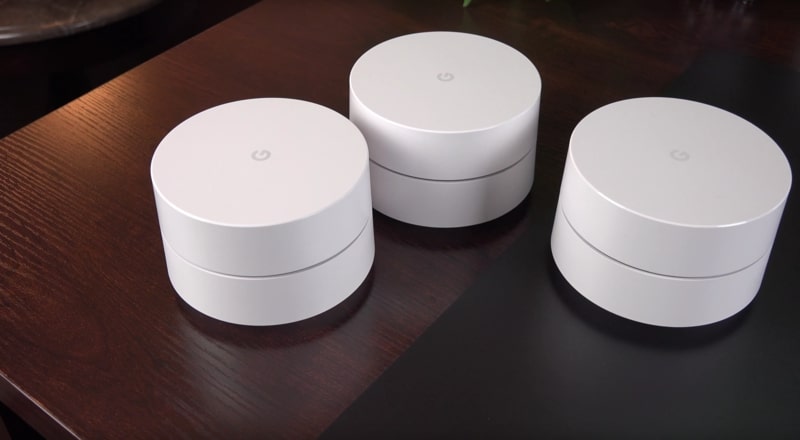
Google WiFi plays an important role in keeping your home connected, supporting everything from work to streaming and smart devices. And when it stops working properly, it can disrupt your entire routine.
However, it is not always necessary to ask for technical assistance. Just know that there is a solution to every problem. In many cases, restarting or factory resetting your Google WiFi can resolve the issue quickly.
Note: This guide focuses on the original Google WiFi system released in 2016. If you’re using Nest WiFi (2019) or Nest WiFi Pro (2022), the reset steps may be different. Be sure to check your device model before proceeding.
Google has evolved its mesh WiFi hardware over the years. The original Google WiFi system was launched in 2016. Later, it was succeeded by Nest WiFi and then Nest WiFi Pro, both offering similar mesh functionality but with hardware and software differences. For example, Nest WiFi Pro supports newer Wi-Fi 6E technology and may use slightly different reset indicators or steps.
Restart vs. Factory Reset: What’s the Difference?
Before performing a factory reset, it’s important to understand the difference:
- Restart: Temporarily turns your device off and on without deleting any settings. This should be your first step.
- Factory Reset: Completely erases your network name, password, and all router settings, returning the device to its original state.
If a simple restart doesn’t fix the issue, proceed with a factory reset.
When Should You Factory Reset Google WiFi?
You may need to reset your device if:
- Your connection frequently drops or is unstable
- The Google Home app cannot detect your device
- You’re experiencing setup errors
- You plan to sell or give away your device
How to Factory Reset Google WiFi on Your Gadgets?
Before looking at other alternatives, let us thoroughly discuss your device first. Follow the steps we are about to mention:
- Thoroughly check if your gadget is connected firmly to the power cord. Keep checking to ensure that it is plugged in during the complete reset process.
- Next, notice the rear of your device and try your best to locate the white round factory reset button.
- Once you are done locating the button, press that button. Keep pressing it until the gadget starts showing a bright orange light, and wait till it turns blue.
- Release the button once the light begins pulsing blue.
- The complete reset procedure will roughly take around ten minutes.
- A solid blue light indicates that your device is ready to be set up.
- Do not unplug the device during this time, as it may restart multiple times.
How to Factory Reset Google WiFi Using the Older Firmware?
If the standard reset method doesn’t work, you can try this alternative approach:
- Carefully disconnect the device that you are using from the power cable.
- Next, try your best to locate the factory reset button at the back of the device.
- Press the button and keep holding it.
- Then connect the power cable back in.
- For the next ten to twelve seconds, keep pressing the button. Release it once the light begins pulsing blue.
- The light will continue pulsing before turning solid blue once the reset is complete.
- This complete process will take several minutes to complete.
- Once the light is solid blue, your device is ready for setup.
How to Factory Reset Google WiFi Using the App?
Before we begin to explain the entire process, let us warn you that factory resetting using the app will end up erasing all the data that you have, and this action cannot be undone. This includes your WiFi network name, password, and all router settings.
Google is constantly evolving and making advancements with time. It has recently standardized the Google Home application. If you still don’t have it, well install it right away and then go through the following steps:
- Access the Google Home app and tap on the WiFi symbol.
- Next, scroll until you find the settings option and tap the gear icon (Settings).
- This should be followed by selecting the “Factory reset network” option.
- Lastly, just click on “confirm” and you’ll be good to go.
Note: Resetting through the app will reset your entire mesh network, including all connected points.
After completing all the steps, just wait patiently for several minutes and your Google WiFi will be ready to function properly.
Conclusion
Now that you’ve gone through the different methods, you’re fully equipped to factory reset Google WiFi on your own. What once seemed like a technical challenge is now a simple and manageable task. Just follow the steps carefully and your network will be back up and running in no time.
Would you like to receive similar articles by email?

Paul Tomaszewski
Paul Tomaszewski is a science & tech writer as well as a programmer and entrepreneur. He is the founder and editor-in-chief of CosmoBC. He has a degree in computer science from John Abbott College, a bachelor's degree in technology from the Memorial University of Newfoundland, and completed some business and economics classes at Concordia University in Montreal. While in college he was the vice-president of the Astronomy Club. In his spare time he is an amateur astronomer and enjoys reading or watching science-fiction. You can follow him on LinkedIn and Twitter.


You May Also Like

The Evolution of Streaming Services: What to Expect in 2026

Evaluating 7 Top Data Center Advisory Services